
Prerequisites
Install the tools you need before you install Agentic OS.
Install these tools before you run the Agentic OS installer.
| Tool | Why you need it |
|---|---|
| Claude Code | Runs the local agent session. |
Node.js with npx | Runs the Agentic OS installer. |
| Git | Lets the installer download and update Agentic OS. |
| Python 3 | Runs setup scripts used by some skills. |
| VS Code | Gives you a simple folder and terminal workflow. |
Check Claude Code
Install Claude Code first. Then open a terminal and run:
claude --versionIf the command works, Claude Code is ready.
If the command is not found, finish your Claude Code install before you install Agentic OS.
Check Node.js
Agentic OS uses npx @scrapes/installer.
Check that npx is available:
npx --versionIf the command is not found, install Node.js and open a new terminal.
Check Git
Check that Git is available:
git --versionWindows users still need Git installed, even though they should not run the installer from Git Bash.
Check Python 3
Check that Python 3 is available:
python3 --versionOn Windows, this command may be:
python --versionWhen you install Python on Windows, select Add python.exe to PATH on the first installer screen. Then restart VS Code.
Open the right terminal
Open your setup folder in VS Code. Then open the terminal panel with
Ctrl+J on Windows or Cmd+J on macOS.
Use the terminal profile menu to choose the right terminal.
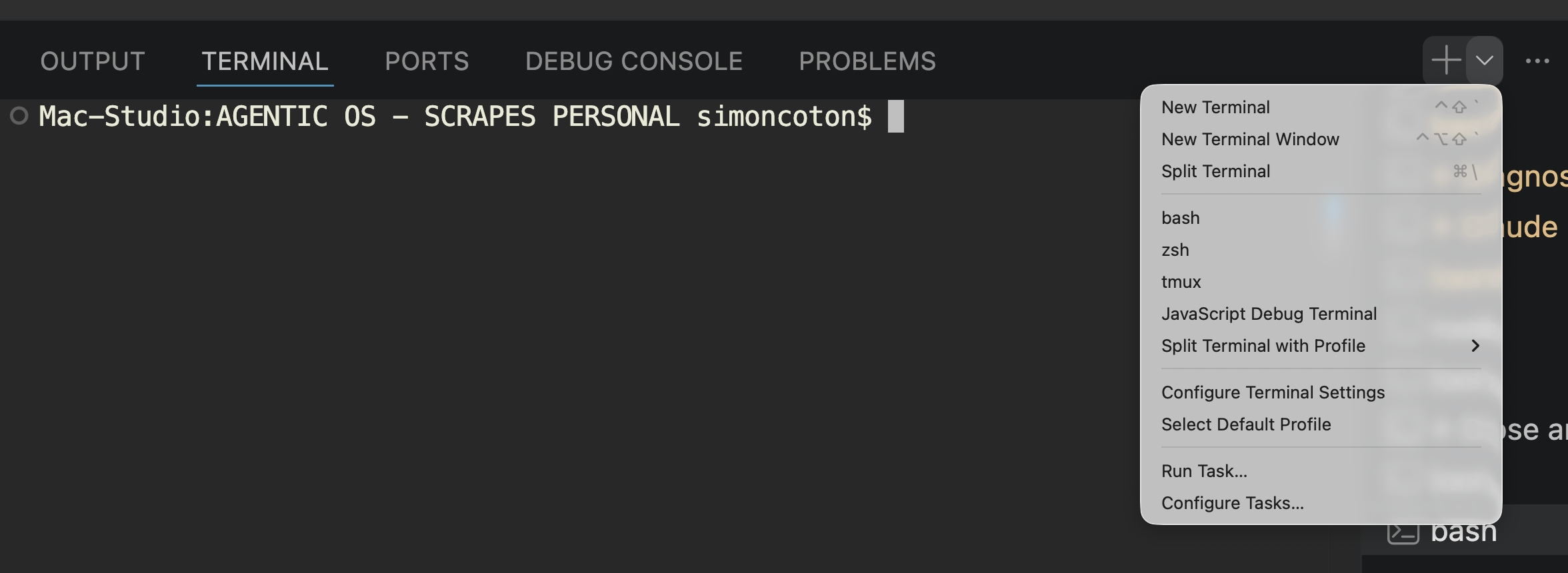
On Windows, choose PowerShell from this menu. Do not run the installer from Git Bash. The guided menu needs an interactive terminal.
On macOS, Terminal, zsh, or bash are fine.
Windows PATH notes
If Windows cannot find a command after you install it, check your Path environment variable.
Search Windows for environment variables. Open the system settings, then choose Environment Variables.
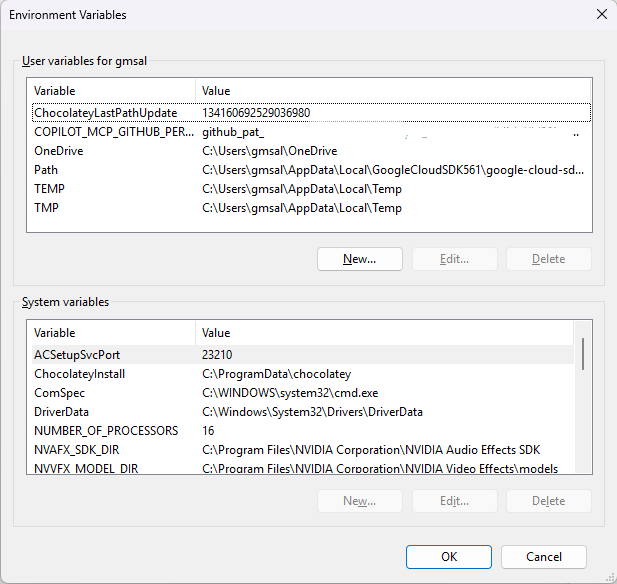
Select Path under your user variables and choose Edit.
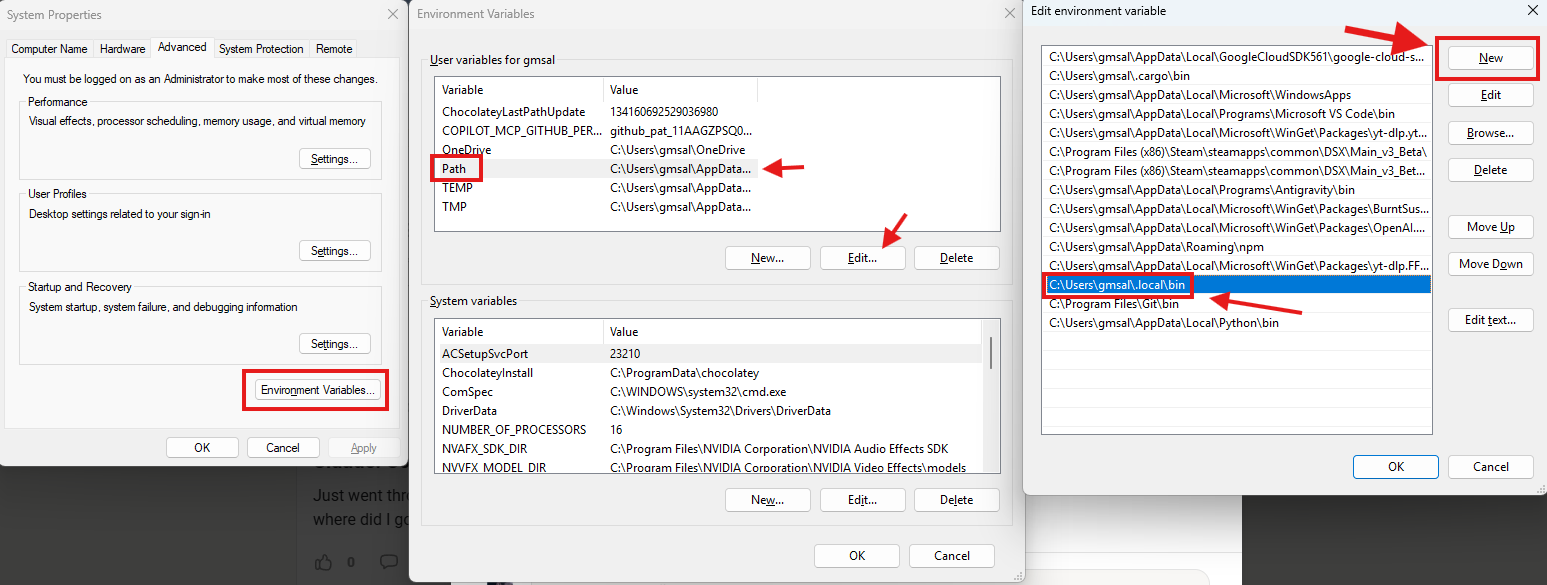
Add the paths that exist on your machine:
C:\Users\<YOUR_USERNAME>\.local\bin
C:\Program Files\Git\bin
C:\Users\<YOUR_USERNAME>\AppData\Local\Python\bin
The final entries should look like this, with your own username:
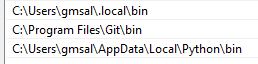
Replace <YOUR_USERNAME> with your Windows username.
After changing Path, close VS Code and open it again.
Next: Local install